
Can I import WooCommerce products with only a name and stock quantity?
Yes. A product name is enough to create a draft, and you can import the stock quantity when it’s in the file. A missing price stays blank.
| Product name | Stock quantity |
|---|---|
| Ceramic Mug | 12 |
| Linen Tote Bag | 7 |
| Oak Cutting Board | 0 |
| Glass Carafe | 4 |
- Download the exampleDownload the sample XLSX and open Products → Fill with AI ✦ → Import a file in WordPress.
- Check the column mappingMap Product name and Stock quantity to the matching fields and check the four rows in the preview.
- Create and check the draftsClear all selected fields under Texts and leave How many photos set to No photos. When the button reads “Create drafts · 0 credits”, click it. Open each draft and check Inventory for stock and General for the blank price.
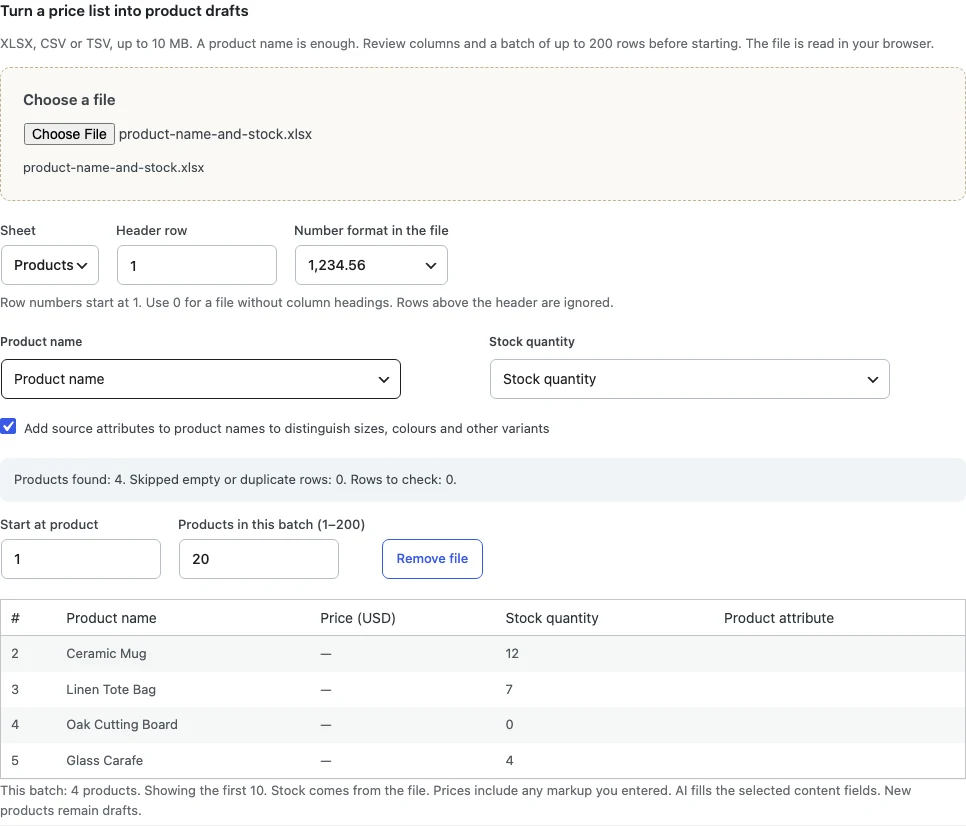
Read the full Excel import tutorial.
How do I automatically fill in WooCommerce product details?
Use Cormak to enrich the drafts you just imported or bulk-fill products already in your store. You choose the fields and start AI generation separately after connecting your Cormak account.
- Choose which products to enrichAfter import, go to Products → All Products → Drafts and select the new drafts. For existing listings, select the products from All Products.
- Choose contentIn Bulk actions, choose Fill with Cormak.app and click Apply. Select titles, long or short descriptions, categories, tags, attributes, SEO fields, image alt text or photos as needed. Keep Only fill empty fields of existing products checked to preserve filled text fields.
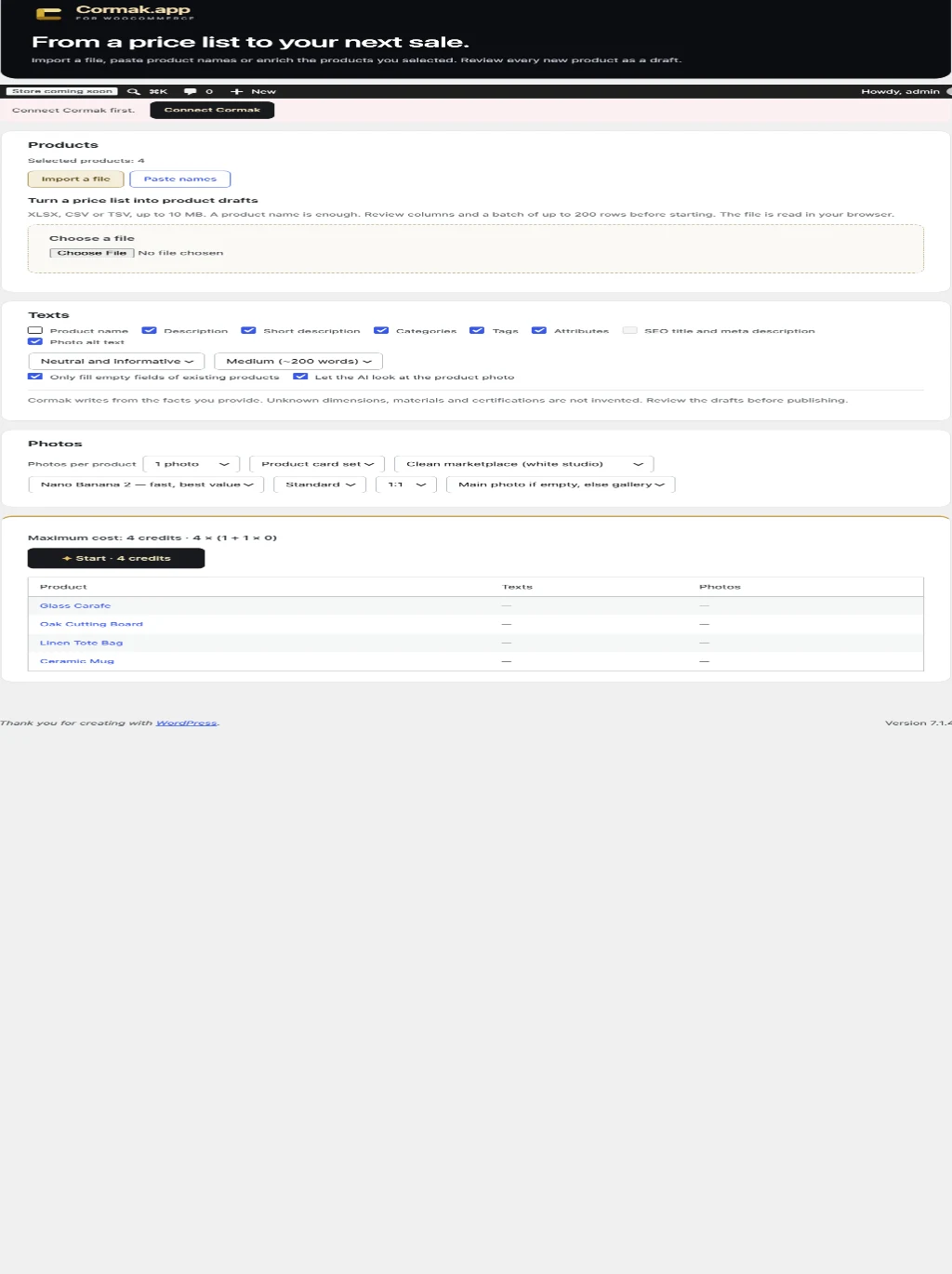
- Run the AI stepConnect Cormak before generating. Check the estimate, select where new photos should go and click Start. Review the results in WooCommerce.
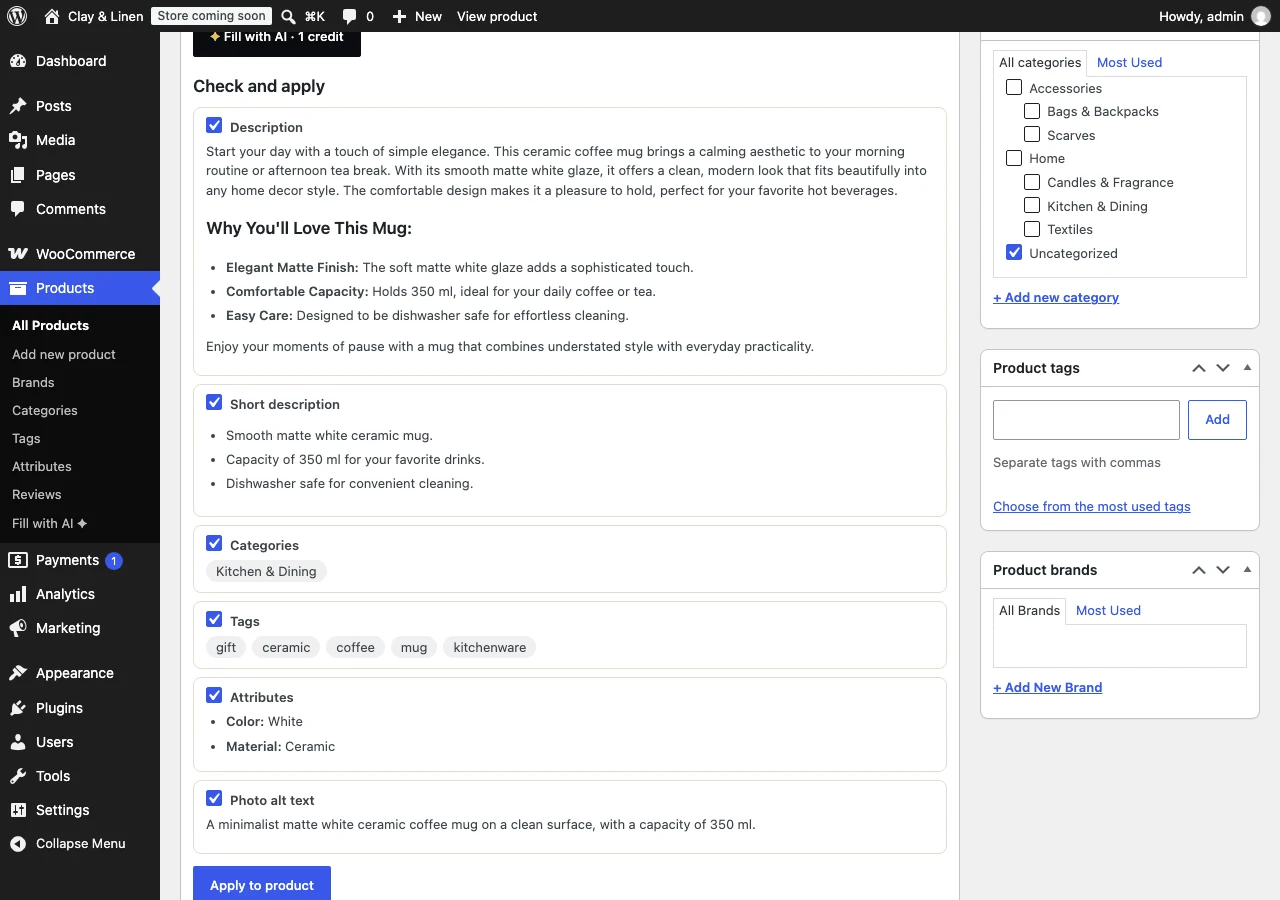
For a single product, click Fill with AI in its editor. Review Check and apply, select the fields you want and click Apply to product.
How do I import a supplier price list into WooCommerce?
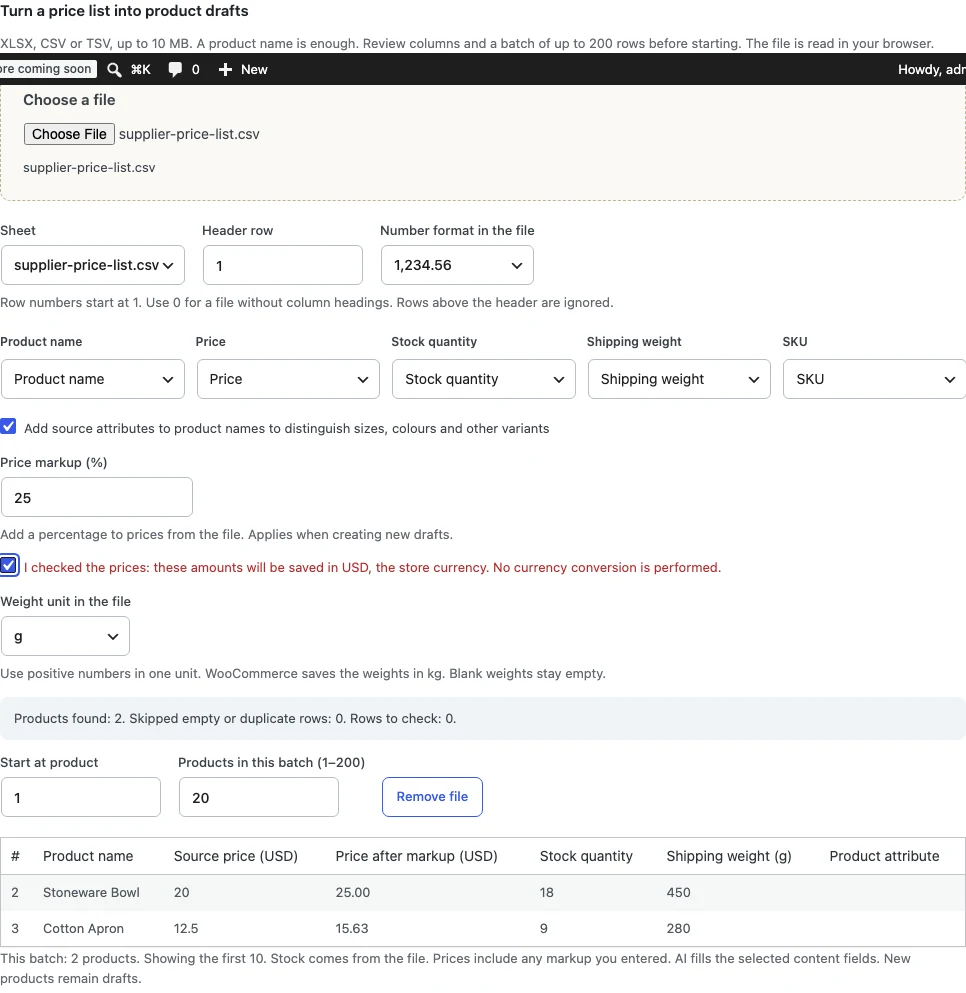
Upload the supplier file, map its price, stock and shipping weight, and preview any markup before creating drafts. Import saves the mapped values and calculated prices. You can then run AI to add listing content.
- Map the supplier columnsIn Import a file, map Product name, Price, Stock quantity and Shipping weight. Choose the source weight unit and map SKU if present.
- Preview the markupEnter 25 in Price markup (%) to preview $20.00 → $25.00 in a USD store. Check the stock and source weight, then confirm that prices will be saved in your store currency.
- Save the draft batchClear all selected fields under Texts and leave How many photos set to No photos. When the button reads “Create drafts · 0 credits”, click it. Review the saved regular price, inventory quantity and shipping weight. Add descriptions and images in a separate AI run if you need them.
Setup guide
- Install and activateWith WooCommerce active, open Plugins → Add Plugin → Upload Plugin in WordPress if you already have the plugin ZIP. Click Install Now, then Activate Plugin. Use an HTTPS WordPress admin for account connection. Localhost works for development. The WordPress.org download link will be added here when the official listing is available. Contact support for plugin availability.
- Import a fileOpen Products → Fill with AI ✦ → Import a file, then use Choose a file. Confirm the sheet, header row, mapping and batch preview. Clear all selected fields under Texts and leave How many photos set to No photos. When the button reads “Create drafts · 0 credits”, click it.
- Connect CormakOpen Account & settings and click Connect Cormak. Sign in or create an account, then set the daily generation limit on the consent screen.
- Fill products in bulkSelect products under All Products, choose Fill with Cormak.app, then click Apply. Choose the text fields and photo count, check the credit estimate and click Start.
- Review drafts before publishingOpen the drafts in WooCommerce. Check the product name, SKU, regular price and currency, stock tracking and quantity, and shipping weight and units. Check descriptions, categories, tags, attributes, SEO fields and image alt text for accuracy. Verify that the main and gallery photos match the actual product, and use Preview to check the storefront before clicking Publish.