
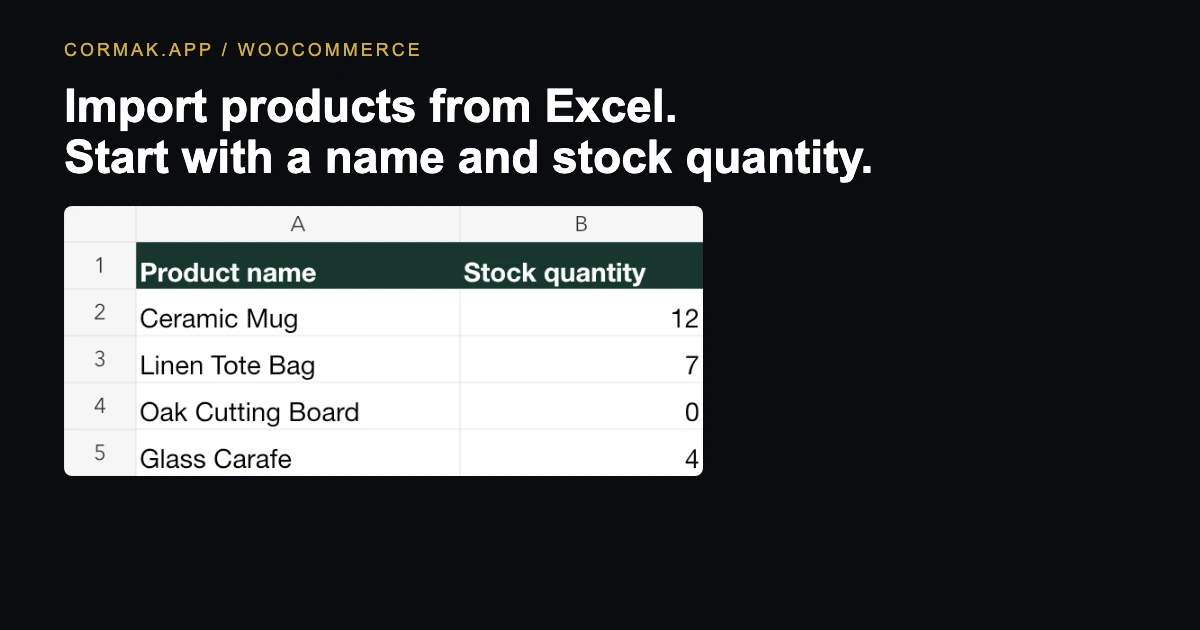
1. Download the two-column Excel file
The Products worksheet has one header row and four sample products. Stock quantity uses whole numbers. The zero in the Oak Cutting Board row is intentional.
| Product name | Stock quantity |
|---|---|
| Ceramic Mug | 12 |
| Linen Tote Bag | 7 |
| Oak Cutting Board | 0 |
| Glass Carafe | 4 |
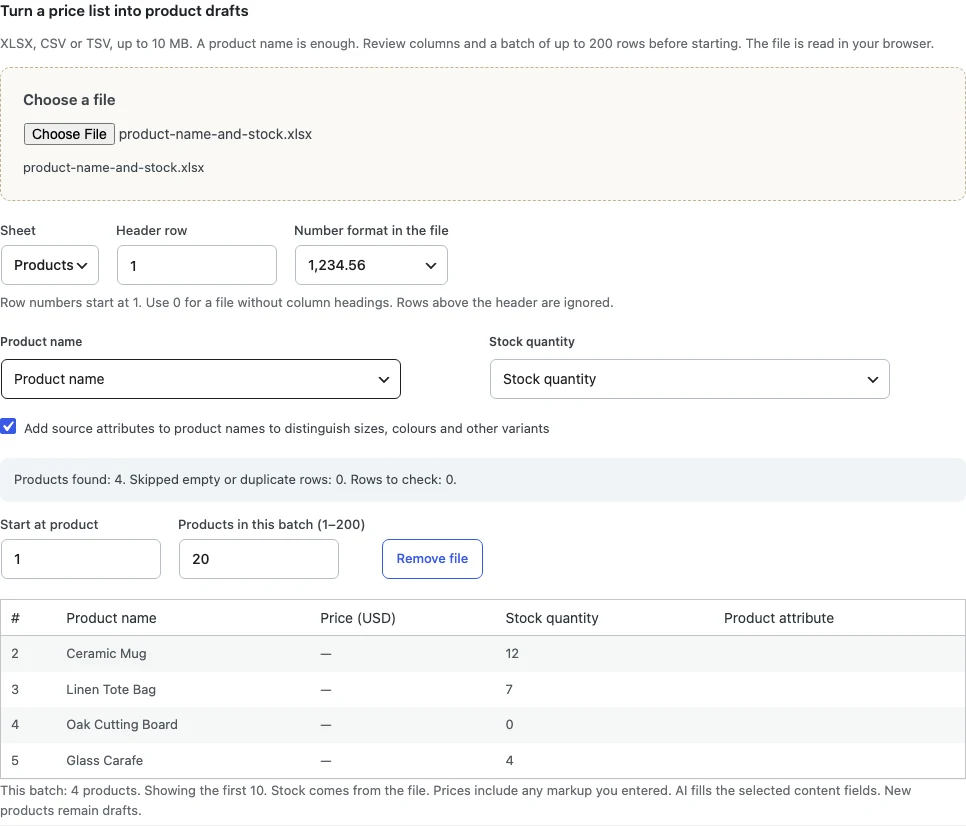
2. Upload the workbook and map both columns
With WooCommerce and the Cormak.app plugin active, open Products → Fill with AI ✦ → Import a file. Use Choose a file to upload the XLSX. Select Products as the sheet and check that Header row is 1.
Map Product name to Product name and Stock quantity to Stock quantity. Check the preview for all four rows. A dash in the price column means the draft’s regular price will be empty.
3. Create four drafts without AI
Clear all selected fields under Texts and leave How many photos set to No photos. When the button reads “Create drafts · 0 credits”, click it.
Wait for the four products to finish, then open the edit links or go to Products → All Products → Drafts. Creating drafts this way uses zero credits and works without a Cormak account.
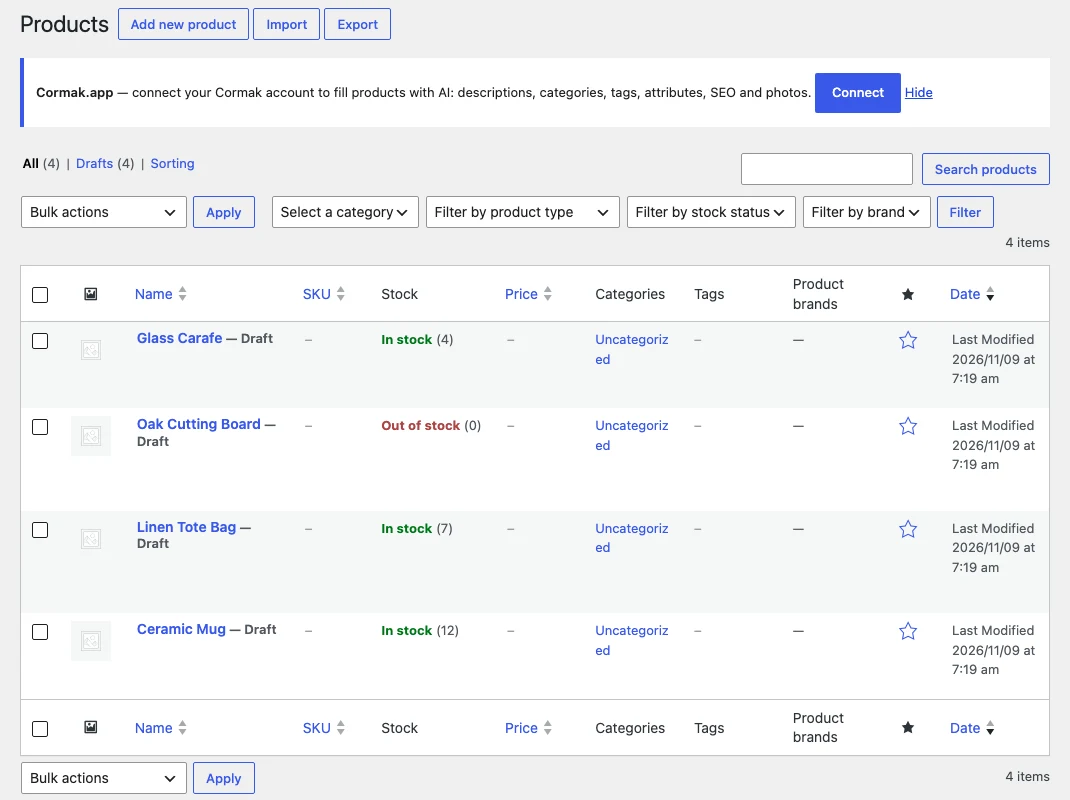
4. Verify stock and blank prices
Open Ceramic Mug. In Product data → Inventory, check that Track stock quantity for this product is enabled and Quantity is 12. Under General, check that Regular price and Sale price are both empty.
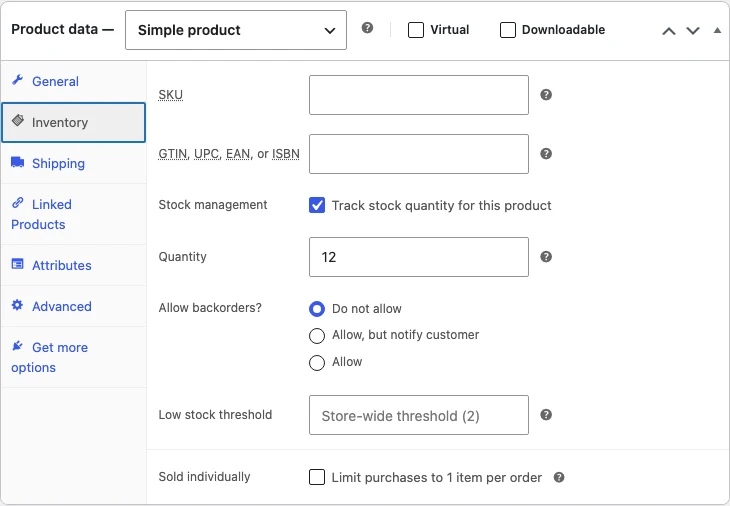
Repeat for Linen Tote Bag (7), Oak Cutting Board (0) and Glass Carafe (4). Confirm each product has Draft status. Set the selling price and check the stock, shipping weight and product details before publishing.
5. Add product content when you’re ready
The file import is complete once the drafts are saved. To generate descriptions or photos, connect Cormak, select the drafts under All Products, and choose Fill with Cormak.app from Bulk actions. Review the selected fields and credit estimate before clicking Start. Check the generated copy, categories, attributes and photos for accuracy before publishing.