What is MCP in plain language?
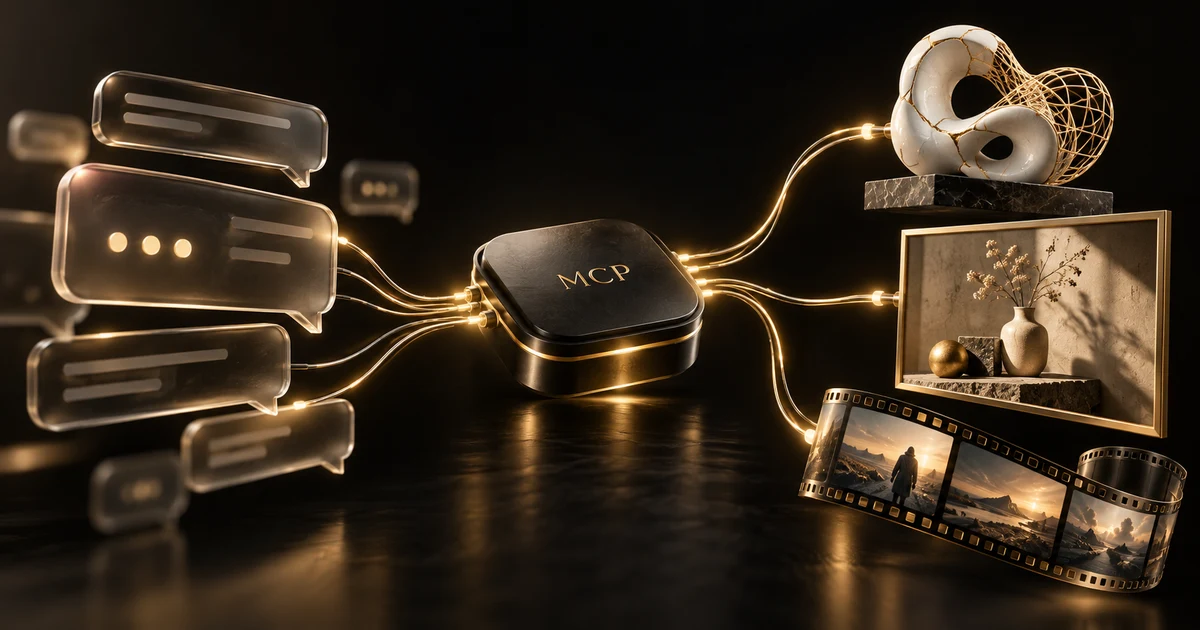
MCP stands for Model Context Protocol. It is an open standard for connecting AI applications to external tools and data. A regular chat helps you develop an idea; a chat with connected tools can also perform a specific action, such as fetching your projects or sending an object description to a 3D studio. The protocol does not generate images or train a model itself. It gives the assistant and the service a shared way to communicate.
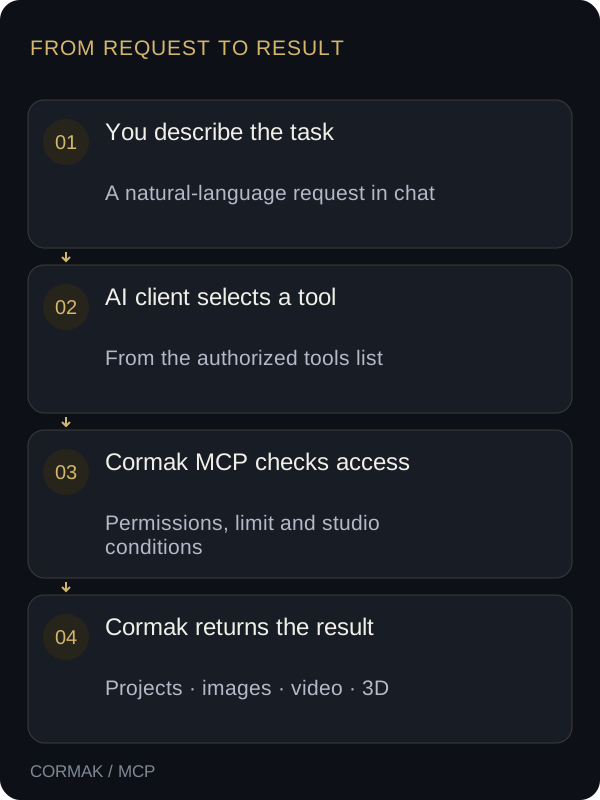
There are three participants. You describe the task in natural language. The AI client — the application hosting the conversation — selects a tool. The Cormak MCP server checks permissions and runs the request in your account. “Show my projects” becomes a read operation. “Create one model from this description” can become a studio request when you have granted the relevant permission and agreed to spend credits.
Why connect Cormak to your AI assistant?
The main benefit is keeping the work in context. Suppose you have already explained the landing page audience, the brand personality and the product details that matter. Without an integration, you have to assemble that context again for each studio. With MCP, the assistant can turn your discussion into a request and send it to Cormak. That means less copying, fewer lost refinements and a shorter path from discussion to an initial visual.
This helps when writing and visual planning happen together. For a product card, discuss the presentation and then generate one image. For a website, inspect a saved project and prepare a separate visual asset. For a physical concept, agree on the shape and request a 3D model. MCP does not replace the editor: manual geometry edits, page adjustments and actions absent from the tool list still happen in the Cormak application.
What the published Cormak MCP server can do
| Task | What the assistant receives | Permission |
|---|---|---|
| Plan and balance | Account data and remaining credits | account:read |
| Saved projects | A list and the selected project content | projects:read |
| Photo Studio | Nano Banana 2 image generation | photo:use |
| Video Studio | Veo Fast video generation and status | video:use |
| 3D Studio | A model from text or an image, status and GLB | studio3d:use |
Read operations use get_account, list_projects and get_project. Generation starts through generate_image, generate_video and generate_3d. Operations can be checked through get_generation and the specific get_video_status or get_3d_status tools. These names help with troubleshooting, but you do not need to memorize them: write an ordinary request and let your client select a tool from the list.
The full application and the MCP interface have different capability sets. A legal workspace, SEO module or agent builder in Cormak does not automatically make that module callable through the published server. This release does not promise to create and publish a complete website with one MCP command, edit a 3D mesh in chat or automatically post a video to a social network. Check the actual tool list after connecting.
What you need before connecting
You need a Cormak account and an AI client supporting remote MCP, Streamable HTTP transport and OAuth sign-in. A remote server means Cormak is reached over HTTPS: you do not have to run a server on your computer or install a separate runtime for it. Reading projects requires the relevant permission. Generations also require available credits and the studio usage conditions to be met.
Claude and Cursor provide mechanisms for remote connections. In ChatGPT, custom MCP app access depends on settings and developer mode availability for your account. Organizational clients may require an administrator to add the connection. First check that your application can add a remote server with OAuth, rather than only a local command.
https://mcp.cormak.app/mcpConnect Cormak MCP in seven steps
- 1. Open MCP in CormakSign in at app.cormak.app and find MCP under Launch, or open app.cormak.app/mcp. The page shows the server URL and your connections. Copy the address using the button beside it.
- 2. Add a remote server in your AI clientOpen the connections or MCP servers section and add a connection with a recognizable name such as Cormak. Enter https://mcp.cormak.app/mcp in the URL field. Select a remote HTTP connection if the client asks for a transport.
- 3. Sign in through CormakThe client opens Cormak authorization. Sign in to the intended account and review the client name and return address. Enter your password on the Cormak sign-in page, not in a chat message. You do not need to supply generation provider keys.
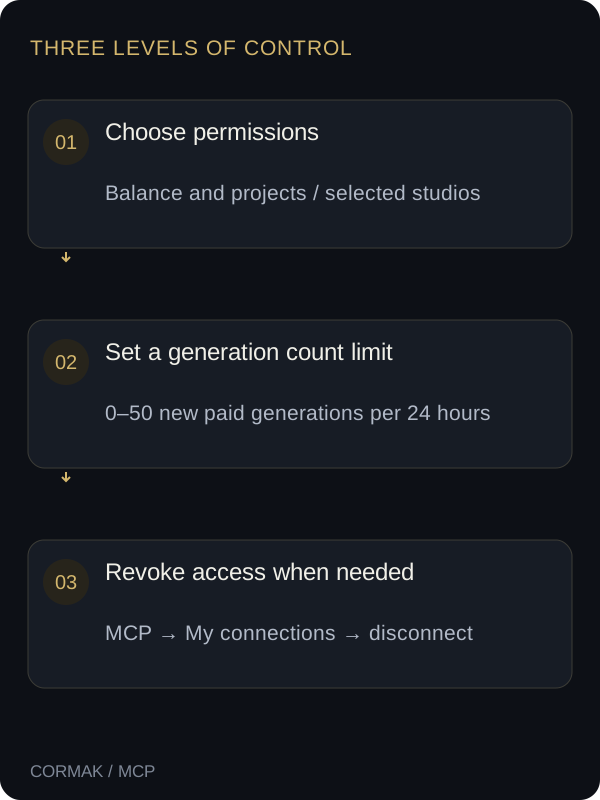
- 4. Choose permissionsFor a first check, allow Plan and balance and Your projects. Grant photo, video or 3D access only when you intend to use those studios. Tools without the relevant permission will not appear in this connection’s available list.
- 5. Set a generation limitSet the maximum number of new paid generations per 24 hours, from 0 to 50; the default is 5. You can start with 0. This limit is shared across the connection’s studios rather than a separate quota for each content type.
- 6. Confirm and return to the clientAfter consent, wait for connection setup and tool loading to finish. If your application requires enabling Cormak for the current conversation, enable it. Check the tools list rather than relying only on Cormak appearing in settings.
- 7. Make a read-only first requestAsk: “Use Cormak to show my plan, remaining credits and projects. Do not generate anything.” Compare the response with your account. Once reads work, you can separately authorize a studio and agree on one test generation.
Connection notes for Claude, ChatGPT and Cursor
In Claude, add a custom remote connector from the connections section. Cormak uses automatic OAuth client registration; if Claude offers a client identity choice, select “Register automatically.” After sign-in, enable the connector for the conversation. An organization owner may first need to add the server. Interface labels change; the official Claude guide is linked below.
In ChatGPT, use the custom MCP app mechanism where your account supports it, with a remote server and OAuth. If your settings do not offer this option, check feature availability and workspace rules first: a paid Cormak account does not enable a feature in another service. An MCP connection also does not mean Cormak is listed in a public directory or officially verified by the client provider.
In Cursor, add an HTTP server to the MCP configuration and complete sign-in. The example below contains only the public address. It needs no Cormak password, Supabase key or generation provider token. If you already use other servers, add the cormak entry to your existing mcpServers object while keeping the other entries. Then open MCP settings and finish OAuth connection setup.
{
  "mcpServers": {
    "cormak": {
      "url": "https://mcp.cormak.app/mcp"
    }
  }
}- Claude: official remote MCP connector guide
- OpenAI: official MCP and authorization documentation
- Cursor: official MCP documentation
Permissions: what you are actually allowing
Permissions are separate. Reading projects does not authorize video generation, and Photo Studio access does not unlock 3D Studio. This helps when using different assistants: one connection can be limited to inspecting projects and another can create images. Deselect permissions you do not need for the current task. If you later need an additional tool, repeat consent and review the new permission set.
OAuth provides limited access without giving your password to the client. Limited access still matters: if you authorize reading project content, that content may enter the external AI service’s conversation context. Choose the account and projects you are willing to use there and consider that client’s own data handling rules. MCP does not turn an external application into part of Cormak’s internal storage.
How much does MCP generation cost?
Connecting does not move billing into your AI chat. Paid generations use credits from your Cormak account, while access to the AI client follows that provider’s own pricing. As of October 14, 2026, a Nano Banana 2 image through MCP costs 2 AI credits, a 3D generation costs 25 AI credits and a Veo Fast video costs 1–4 video credits depending on parameters. Check the current price before starting because pricing and available models can change.
AI credits and video credits are separate balances. Having one does not imply having the other. The first free photo available in the studio interface is not used through MCP; the MCP image price applies. Reading your plan and project list does not start generation or spend studio credits, making it a good first connection check.
A paid call requires a technical confirm_spend flag and a unique request_id. This protects the operation but does not guarantee a separate popup for every generation: the client controls how approval is presented. Agree on the brief and price first, then explicitly allow one generation. If your client offers tool execution controls, choose the mode that fits your workflow.
Example prompts: from reading projects to creating a 3D model
A useful request separates preparation from execution. During preparation, the assistant clarifies the task and drafts the prompt. During execution, it calls exactly the operation you agreed to. This makes results easier to compare: you know what went to the studio and how many runs took place. Copy the examples below and replace the details with your own.
Use Cormak to show my plan and remaining AI and video credits.
Then list my saved projects.
Do not generate or change anything.
For an image, describe one main subject, its setting, lighting and intended use. A text-only description does not guarantee an exact reproduction of a real product; inspect its identifying details in the result. For reference-based product work and more complex settings, the full Photo Studio interface may be more convenient.
Prepare a prompt for one image of a ceramic cup:
ivory glaze, linen tablecloth, soft light from the left,
space above for a headline, no lettering.
Show the prompt and Cormak price. Wait for my approval.
For video, specify object or camera movement and a duration supported by the tool. Turn a larger story into one clear shot first. “Make an ad” leaves many choices to the model; “a cup on a table, a slow camera push-in, morning light” defines a scene you can evaluate. The first MCP release uses Veo Fast; it does not automatically expose every model or multi-step workflow from Video Studio.
Prepare one Veo Fast video in Cormak:
a ceramic cup on a wooden table in morning light,
a slow camera push-in, a calm product advertising shot.
Check supported parameters and video credits.
Do not start generation until I approve.
For 3D, describe the object as a shape: silhouette, proportions, material and the main parts. Generation produces a starting model to inspect. It does not guarantee engineering accuracy or readiness for manufacturing or printing. Open the result in 3D Studio, inspect it from every angle and use manual tools for any needed adjustments.
Prepare a description for one 3D desk organizer:
a rounded rectangular body with three compartments of different heights,
matte plastic, no small decorative details.
Show the final prompt and price. After I approve,
create one model and check its status; do not start another run.
A practical workflow: assets for a new product
Imagine a small workshop launching a desk organizer. The owner discusses its audience and main qualities with an assistant: compactness, convenience and a calm visual style. Next, the owner asks it to read a saved landing page project to match its tone. MCP provides real project context here; it does not publish a new page by itself.
Next comes one agreed visual. The assistant drafts a product scene and explains the cost. After approval, it calls Photo Studio. The owner checks material, proportions and fit with the concept. A suitable image can support further concept work; an accurate view of a finished product is better approached with an actual reference photo and the appropriate interface tools.
A separate request can prepare a short video scene or a 3D concept. You do not need to run every studio in sequence: one image may be enough to test the idea. The output still requires human review, and website or social publication happens separately in this workflow. This example describes a possible process, not a guaranteed visual result or increase in sales.
Why a generation result may take time
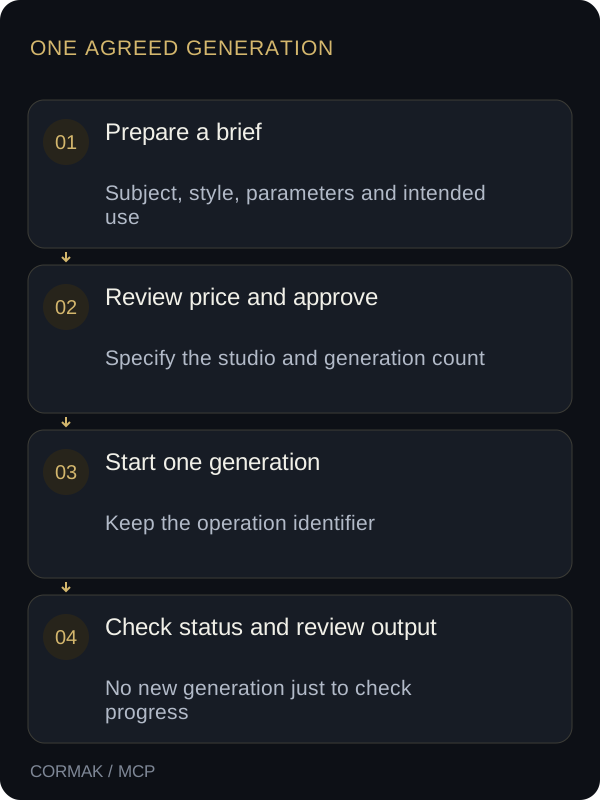
Creating an image, video or model differs from reading a project list. A request may first return an operation ID, with the finished file becoming available later. The assistant should then use status tools to check that existing run. “Still processing” is not a reason to automatically send the brief as a new generation.
The unique request_id prevents a repeat of the same call with the same arguments from causing another charge. Changed arguments with the old ID return a conflict. This is retry protection; it does not prevent a client from creating a new request with a new identifier. “One generation, then status checks only” is therefore a useful instruction. If the status is unknown, investigate the existing operation before allowing an automatic retry.
Troubleshooting a connection or tool call
- The client cannot find the server. Check the full URL including /mcp and remote Streamable HTTP support. Opening the endpoint in a browser may show an authentication error: it is a client endpoint, not a blog page.
- Sign-in succeeded, but generation is missing. Review this connection’s permissions. Read-only connections hide studio tools; repeat consent to grant access to the studio you need.
- A tool is visible, but the call is rejected. Check the relevant balance, 24-hour limit, AI consent and request parameters. Video uses its own credits rather than the general AI balance.
- A connection stopped working. It may have been revoked or may require sign-in again. Open My connections in Cormak, review the entry and complete authorization again in the client.
- The AI replied with text but did not use Cormak. Check that the connection is enabled in the conversation. Ask it to call a Cormak tool and return the operation result; an ordinary chat suggestion does not prove the server was called.
- A run appears stuck or its status is unknown. Keep the operation ID and check the status and your account. Do not create another paid run simply because the client did not wait long enough for the response.
How to disconnect an AI client from Cormak
Open MCP in the Cormak application and find the entry in My connections. Disconnect it to revoke that connection’s access and tokens. This is useful after an experiment, when changing clients or when you no longer want the client to use your studios. You can also remove the server in the AI client, while revoking it in Cormak gives you direct control over account access.
Disconnecting does not delete your account or cancel an already started generation. It also does not remove a file already returned to an external conversation or automatically refund spent credits. If you decide to continue later, authorize the connection again and choose its permissions and limit.
Where to go after your first connection
Start by reading your balance and projects, then choose one studio for a specific task. The guides below help improve the result in the editor: describe an image, inspect a 3D model and plan the next content steps. For the protocol itself, use the official Model Context Protocol documentation.