Where to start when making an AI film
The short answer is to begin with a story you can show clearly in 30–60 seconds. Choose one character, one place and one event. Prepare a few shots, produce them individually and edit a sequence. This first film teaches the complete workflow before you invest time and budget in dozens of scenes.
AI can help create scripts, images, clips and other raw material. The author decides which material serves the story, fixes weak points and makes editing decisions. A beautiful moving image is not automatically a film: viewers need a clear sequence, action and outcome. Learn to connect four useful shots before expanding the scale.
A small coffee-shop advertisement, a story about a found object, a travel vignette or a demonstration of one action are suitable first projects. A crowded chase, a long conversation or frequent location changes require more control. A simple exercise makes it easier to identify why a particular shot fails.
Here, filming means making a movie with AI-generated material and editing. You can also include your own live-action footage. Cinema Studio brings the material together, while images, music and voice-over may be prepared elsewhere and uploaded as finished files. Plan the aspect ratio, character appearance and visual style before producing the sources.
How to make an AI movie in eight steps
- 1. Define the idea and audienceState the story and what viewers should understand at the end. For a first attempt, choose a short story with one character and one setting. This keeps attention on the action instead of an endless search for attractive images.
- 2. Write the screenplayDescribe the beginning, development and ending through visible actions. Include the location, time, cast, props and important sounds. Record dialogue separately and divide complex events so each future shot has one clear purpose.
- 3. Prepare characters and locationsEstablish appearance, clothing and spatial layout. Prepare consistent starting images. For several people in one shot, prepare a joint composition showing their positions.
- 4. Build a storyboardDivide the story into scenes and shots manually or with AI assistance. Review an AI proposal before adding it. Give every shot a framing, action, camera instruction and planned duration.
- 5. Generate the footageChoose a model and supported settings for the individual shot, check the quote and confirm. Start with one trial scene; continue with the others once the appearance and movement work.
- 6. Choose the useful takesWatch the complete clip and inspect appearance, props, setting and audio. Revise a problematic shot with a specific change rather than repeating an unclear request. Select the variant you want to use.
- 7. Edit the picture and soundInsert videos on the timeline, order them and trim excess footage. Add music, voice-over and captions, then check levels and timing. A newly selected take must be replaced separately in an existing edit.
- 8. Export and review the MP4Render the movie and watch it without stopping. Rebuild after the last edit, download the MP4 and open it in a normal player. Check the story, soundtrack and caption timing.
How an AI film project works
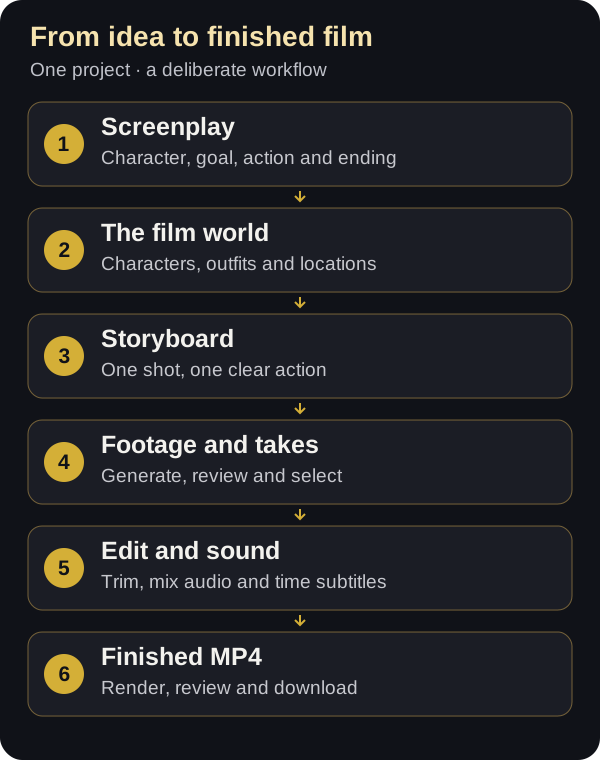
An AI film is a sequence of deliberately designed video shots. In Cormak Cinema Studio, shooting a shot means describing it and generating a short clip, or uploading footage you already have. A saved film project brings together the screenplay, characters, locations, source files, takes and final edit.
- The film is the entire project. A scene is a meaningful episode in a place or around an event. A shot is one continuous camera view. A take is another attempt to produce that shot. Separating these ideas makes a larger story manageable.
- The Screenplay tab contains the story and film settings. Characters and Locations are libraries of descriptions and reference pictures. Storyboard is your shooting plan, including the settings of each shot.
- Generation lets you work on shots and check unfinished jobs. Editing contains the actual sequence, audio and subtitles. History records generation requests, expenses and reports.
- A screenplay does not automatically become a finished movie. After planning the shots, prepare the images, generate or import clips, choose the useful takes and put them on the editing timeline.
- Begin with a film lasting a few dozen seconds. A short scene is enough to test character appearance, visual style, rhythm and costs before committing to a longer production.
Create a project and choose its format
Open Video Studio, choose Cinema Studio and sign in to work with saved films. Select Create film to open a project with its working tabs. Give it a useful name, such as Coffee shop — morning, version 1, rather than leaving several unrelated projects with the same default name.
- Step 1Enter the film title in the Screenplay tab. This is how you will recognize the project in My films when returning to it later.
- Step 2Choose 16:9 for a horizontal screen, 9:16 for a vertical video or 1:1 for a square composition. Decide before preparing images and generating clips, so important subjects are framed for the intended screen.
- Step 3Set the planned duration in seconds. It is a planning target used for the storyboard; it does not trim the finished film or automatically create missing footage.
- Step 4Choose 720p or 1080p for the finished movie. This controls the exported MP4 dimensions, while the resolution of each generated source clip is chosen separately.
- Step 5Optionally enter a project budget as a reference for expenses. Save the project and wait for the server-saved status before leaving it.
Write a screenplay that can be shown on screen
A useful screenplay says what viewers will see and hear. Start with one question: what changes between the beginning and the ending? An advertisement can move from a problem to a solution; a short drama can revolve around one small choice; an explainer can show an action and its outcome.
- Step 1Define the audience and purpose: demonstrate a product, tell a story or explain a service. Describe the intended result in one sentence so the film has a clear direction.
- Step 2Define the central character, their goal and the obstacle. Even a very short advertisement benefits from a visible task rather than a collection of attractive images.
- Step 3Divide the story into a beginning, development and ending. Give the viewer a reason to keep watching, show the action and then provide a result.
- Step 4Write events in order, including location, time of day, actions, important objects, dialogue and sounds. Replace abstract feelings with visible behaviour: the character freezes, grips an envelope and glances at the door.
- Step 5Record details that should match between shots: clothing, weather, the hand holding an object, character positions and screen direction.
- Step 6Paste the script into the film screenplay field. Before asking for a storyboard, add characters and locations with the same names used in your screenplay.
Title: First Light. A film of about 30 seconds, 16:9, calm realistic style.
Character: Aliya, about 30, short dark hair, beige shirt, dark green apron.
Location: a small coffee shop, wooden counter, large window on the left, early morning and warm light.
Beginning: the empty coffee shop. Aliya opens the door and turns on the lights.
Development: she places a white cup on the counter and pours coffee. Steam rises. Aliya looks toward the first sunlight through the window.
Ending: she places the cup in front of the first visitor and smiles. Audio: a quiet cup clink, coffee machine and gentle music. No dialogue or text inside the generated image. One simple action per shot.Turn the screenplay into scenes and shots
A storyboard is a list of specific camera views. One scene might need a wide establishing shot, a medium view of the character and an insert of a crucial object. Breaking the scene down lets each generation focus on one achievable action.
- Step 1For AI assistance, complete the screenplay and select Create storyboard from screenplay. Read the quoted cost and confirm the request in the dialog.
- Step 2Expand the proposed scenes and read the shots before accepting them. Check chronology, character participation, duration and whether each action can be shown clearly.
- Step 3Select Add scenes to project if the proposal is useful. They are appended to the current storyboard. Existing shots stay in place, so accepting repeated proposals can create duplicates.
- Step 4For manual planning, open Storyboard and use Add scene and Add shot. Enter a scene name and purpose, then select a shot from the horizontal strip.
- Step 5A new project already has an initial scene and shot. Review them after adding an AI proposal; use them in the story or remove the unnecessary placeholder shot and scene.
- Step 6Complete the shot name, prompt, camera movement, participants and location. Earlier and Later move shots inside the selected scene; dragging the cards is another option.
Prepare character descriptions and outfits
The character library is a reference document for your cast. It stores descriptions, reference pictures and clothing variants so you can select the same character consistently across shots. Clear, stable details are more helpful than a long list of changing adjectives.
- Step 1Open Characters and select Add character. Use the same name as in the script, for example Aliya, so the person can be identified when preparing the storyboard.
- Step 2Record a few stable visual traits: approximate age, hair colour and shape, distinctive details, build and the basic outfit. Keep permanent appearance separate from the action of a particular shot.
- Step 3Upload clear reference pictures without heavy blur. Several views can help your preparation, but storing them in the library does not mean the video model receives every picture at once.
- Step 4Use Add outfit for a clothing change. Give it a useful name and specific colours, such as Work clothes — beige shirt and plain dark green apron. Add an outfit photo when needed.
- Step 5Select the character in Characters in shot and choose the appropriate outfit beside their name. Repeat this for every shot in which the character appears.
Aliya, a woman around 30. Short straight dark hair to the chin, brown eyes, a calm open face and medium build. Main outfit: a beige long-sleeved shirt and a plain dark green apron. Keep the hairstyle, clothing colours and overall appearance consistent in neighbouring shots.Define locations and preserve scene geography
Viewers should be able to understand the space. A window jumping to another wall or a doorway switching sides can make adjacent shots feel unrelated. A location description helps establish the room layout, lighting and key objects.
- Step 1Add a location with a short name such as Coffee shop at sunrise. Use a name that is easy to recognize in the shot selector.
- Step 2Record where the window, entrance, counter, table and major props are located. Add materials, dominant colours, time of day and the direction of the light.
- Step 3Upload a wide reference image of the setting. For neighbouring angles, prepare consistent pictures of the same space instead of unrelated rooms that happen to share a style.
- Step 4Choose the location in the shot details. Its written description helps define the environment in the generation request.
- Step 5Before a new scene, decide what changed in the story. A new time of day or place can be intentional, but the transition should be clear to the viewer.
A small welcoming coffee shop. A long wooden counter on the right, a large window on the left and a glass entrance door on the far wall. Light-coloured walls, dark green details and plain white cups. Early morning with soft warm light from the left. Preserve the positions of the window, door and counter throughout the scene.Prepare the starting image for each shot
A starting image establishes the visible composition at the beginning of a clip: the face, clothing, background, viewpoint and positions of objects. It is particularly useful when the same character needs to remain recognizable between shots.
- Step 1Select a storyboard shot. Use Upload image to add a picture you already prepared and describe its source in plain language.
- Step 2To generate an image inside Cinema Studio, complete the shot prompt and select Create image. Review the cost before confirming. With one selected character, a supported outfit or character reference can guide the image request.
- Step 3Inspect the picture before spending credits on video: the face, hands, outfit, props and character positions should already fit the intended action.
- Step 4Prepare images in the film's aspect ratio. Leave space in the direction of a character's movement or gaze instead of putting essential details against the edges.
- Step 5Continue naturally from the picture. If the character is already holding a cup, describe the next action rather than first asking them to pick it up from a table.
- Images can be PNG, JPEG or WebP, up to 5 MB. Imported video and audio can be up to 100 MB per file. The upload dialog shows supported file types.
- A source label such as My own footage or Prepared by the author in ChatGPT Images is saved as a user declaration. It is not independent verification of a file's origin or model.
- Text-only video is an option when supported by the selected model and settings. A prepared starting picture gives a more explicit basis for repeated appearance and composition.
Film two or more characters in one shot
A joint shot needs a clear spatial arrangement. Aliya and the visitor talk is less useful than specifying who is left or right, which way they look and who performs the action. Prepare one composition showing both characters together.
- Step 1Create a separate library entry for each person, with their own name and appearance. Select both in the shot's character list.
- Step 2Prepare the joint image in an image generator or editor and upload it to this shot using Upload image.
- Step 3State the arrangement and active character: Aliya stands behind the counter on the left; the visitor waits on the right; Aliya sets down the cup while the visitor remains still.
- Step 4For a conversation, alternate a shared view with individual shots of each speaker. This is easier to control than asking one clip to handle a complicated exchange and several actions.
- Step 5Review the full take, especially the beginning and ending. Check that people do not swap positions, merge, lose their props or change outfits.
Write a clear video prompt
A prompt describes what happens on screen. State the subject, setting, one main action, lighting and mood in a logical order. Camera movement can go in the separate Action and camera movement field.
- Step 1Begin with the subject and framing: a medium shot of Aliya behind a wooden counter. Establish where the action starts before adding decorative details.
- Step 2Describe one principal action: Aliya slowly places a white cup on the counter. Give the viewer time to notice one meaningful event.
- Step 3Add visible details that matter to the story, such as steam, wet pavement, a moving curtain or a glance at the door. Avoid long lists of unrelated decoration.
- Step 4Use the same lighting and style language in neighbouring shots: soft warm morning light and a calm realistic style, for example.
- Step 5Remove contradictions. A camera cannot remain fixed and rapidly orbit the character at the same time; a person should not simultaneously sit and walk.
- Step 6Shorten an overloaded request. Selected character, outfit and location descriptions are also added, so keep those descriptions focused rather than repeating the entire script.
A medium shot of Aliya behind the wooden counter of a small coffee shop. Wearing a beige shirt and dark green apron, she slowly places one white cup on the counter and briefly looks at it. Thin steam rises from the cup. A large window on the left casts soft warm morning light. Calm realistic style. Preserve the outfit, hairstyle and prop positions from the starting image. No text in the image.Choose shot sizes with a purpose
Shot size directs attention. Introduce the place, show the action and then isolate a meaningful detail. Change framing when it adds information, rather than simply making every clip look different.
- A wide shot shows the space and where people are positioned. Use it to introduce a scene, show an arrival or establish a new location.
- A medium shot, roughly around the waist upward, makes an action readable: handing over a cup, opening a book or turning toward another person.
- A close-up emphasizes a face or reaction. Ask for a simple expression and restrained movement rather than several rapidly changing emotions.
- An insert emphasizes an object or gesture: fingers on a door handle, coffee pouring or an envelope on a table. It can also bridge two neighbouring shots.
- An over-the-shoulder view establishes a conversation. Keep the camera side and relative character positions consistent in the reverse shot.
- Try this simple sequence: a wide coffee-shop view, a medium shot of the barista, a cup detail and a close-up of a smile. Each image contributes a different piece of the story.
Direct the camera movement
Camera movement should support the action. A locked camera or one slow move is a useful starting point. A rapid orbit, changing height and a very active character make a shot substantially harder to control.
- Locked camera: the camera stays still while the character moves. It is useful for product details, small actions and comparing takes.
- Slow push-in: the camera approaches a person or object. Specify one smooth movement without an abrupt change of direction.
- Pull-back: the camera moves away and reveals more space. It can work for an ending or for showing the broader setting.
- Pan: the camera turns from a fixed position. Say what it follows and where the movement stops.
- Tracking: the camera moves alongside a person. Describe direction, pace and height, such as following on the right at chest level at walking speed.
- For dialogue, imagine a line between the two characters and keep the camera on one side of it. One person can continue looking right and the other left. Establish a deliberate side change with a wider view.
Camera at chest height, slowly pushing toward the cup. No orbit or sudden movement. Aliya calmly places the cup and stays behind the counter. The background and other objects remain still.Maintain character appearance and continuity
Continuity makes separate clips feel like the same world and moment. AI can alter small details between takes. Concentrate on the few visual anchors viewers will immediately recognize.
- Step 1Approve the character's appearance and main outfit before producing many clips. Do not rewrite those descriptions without a story reason.
- Step 2Repeat the location, light direction, time and dominant colours. Morning light from the left should not suddenly become night light from the right in the same scene.
- Step 3Record prop positions: cup in the right hand, envelope on the left of the table, doorway behind the character. Compare the previous ending with the next beginning.
- Step 4Maintain screen direction. If someone leaves left to right, support that direction in the next shot or make the change understandable.
- Step 5Use a purposeful insert or wide shot when a direct cut exposes a small mismatch. A cup detail or room view can bridge neighbouring actions.
- Step 6Redo the specific problematic shot rather than the entire film. Keeping the same model and settings can make the comparison more controlled, but every new take still needs visual review.
Choose a model, duration and source resolution
The video model selector above the project tabs applies to the currently selected shot. Check the shot selector before changing settings. Different shots in the same film can use different models and resolutions.
- Step 1Choose the shot and an available model: Seedance 2.5, Seedance 2.0, Veo 3.1 Fast or Kling 3.0 Pro. Disabled buttons and missing options mean the combination is not currently available.
- Step 2Choose the source resolution in the shot-generation quality field. The Storyboard tab provides the same model and resolution settings for the selected shot.
- Step 3Select a supported duration. Use a short, meaningful interval for one simple action. A longer single shot is not a substitute for a sequence of different camera views.
- Step 4Enable model audio if needed and supported. Veo audio is enabled. For exact dialogue or a specific musical track, prepare a separate file for editing.
- Step 5After changing models, inspect duration, resolution and audio again. Unsupported values may be adjusted to a compatible setting.
- Step 6Read the quote in the confirmation dialog. Compare models with one clearly defined test shot and choose the result that serves the story.
Generate a shot and check the result
Get one shot right before repeating the process widely. Many retries of an unclear prompt consume budget without fixing the cause. A small test reveals whether the model understands the action and composition.
- Step 1Select a shot in Storyboard or Generation. Check its prompt, camera instruction, participants, location and starting image.
- Step 2Confirm the intended model, duration, resolution and audio. Select Create shot video.
- Step 3In the confirmation dialog, check the shot title and quoted video credits. Start the generation only when those settings are correct.
- Step 4Wait for the result without submitting a second request merely to check the first. Processing time varies with the model, clip length and service load.
- Step 5Play the complete finished take. In Takes and variants, choose Select variant for the result you intend to use.
- Step 6Save the project and repeat for the next shot. Each video fragment is produced independently.
Review takes and improve one thing at a time
A useful take tells the intended part of the story and fits its neighbours. Do not judge only the opening picture: movement can reveal problems halfway through an action or near the end.
- Step 1Review the opening: does it match the starting image, keep the character recognizable and place the important objects correctly?
- Step 2Watch the action in full. Look for extra hands, objects, people or accidental lettering, and for changes to the face, clothing or background.
- Step 3Listen to the audio. Check speech clarity, unwanted voices, abrupt noises and music that conflicts with the scene.
- Step 4Compare the ending with the next shot's opening: gaze, prop position, lighting and tempo should make sense together.
- Step 5Trim a small defect at the beginning or end if the main action remains usable. For a central problem, revise the prompt or starting picture and create a new take.
- Step 6Change one important factor per attempt: simplify the action, remove the camera move or clarify an object. Saved variants let you return to a useful result with Select variant.
Combine generated clips with your own footage
You do not need to generate everything in one tool. A film can combine your own recording, prepared clips and footage generated in Cinema Studio. Plan consistent framing, light and visual style so the sources belong together.
- Step 1Select a suitable storyboard shot and choose Upload finished video. MP4 and WebM files up to 100 MB are supported.
- Step 2Describe the source, such as My own recording — coffee shop, upload the original and wait for completion.
- Step 3In Editing, use Add selected shots to insert selected videos. Alternatively, choose a file in Video for editing and use Insert fragment.
- Step 4Check the aspect ratio, duration and sound. Trim unnecessary sections and balance loudness against neighbouring clips.
Build the actual film on the timeline
The storyboard is a shooting plan; the editing timeline defines the finished film. Only inserted videos become part of the edit. You can use selected takes, other saved variants and imported footage.
- Step 1In Editing, use Add selected shots to insert chosen videos that do not already have a linked timeline fragment.
- Step 2Use the Video for editing selector and Insert fragment for a particular file. You can insert the same file more than once when the story needs it.
- Step 3Select a timeline fragment and drag it, or use Earlier and Later to change the sequence. The timeline order does not need to match the storyboard order.
- Step 4Set the trim start and end in seconds inside the source file. A start of 1 and end of 6 retain five seconds of footage.
- Step 5Give viewers enough time to read an action but remove pauses that add nothing. For a longer film, assemble a clear complete sequence before fine trimming.
- Step 6Remove from editing deletes a timeline instance while keeping the source file in the project. Replace an inserted fragment manually after choosing a different take.
Use cuts and transitions deliberately
A transition connects adjacent fragments. Start with a straight cut for most actions and conversations. More noticeable effects can signal a change of time, place or mood, but they should support the story.
- A cut immediately replaces one image with the next. It works for dialogue, actions and most advertising sequences.
- A dissolve briefly overlaps the two clips. It can suggest a softer change, memory or passage of time.
- A fade through black creates a visual pause between episodes.
- The transition-to-fragment setting applies to the entrance of the selected fragment. Choose its duration in relation to the length of both neighbouring clips.
- A dissolve overlaps footage and affects the total running time. Use the Editing duration display as a reference and review the rendered result.
- A long transition rarely repairs a confused composition. A better insert, clearer shot change or precise trim may connect two images more effectively.
Add music, dialogue and sound
A finished film can mix the clips' original sound with separate audio tracks. Keep those layers from competing. For exact words, prepare your own recording or a finished voice-over file and add it during editing.
- Step 1In Music and dialogue, select Upload audio, choose a supported file, record its source and complete the upload.
- Step 2Choose the track type: Music or Dialogue / voice-over. This identifies the file's purpose in the project.
- Step 3Set when the track begins on the film timeline. Audio from and to select the section inside the audio file itself, rather than its position in the film.
- Step 4Adjust track volume. A value of 1 is the original level and 0 is silence; amplification can cause overload. Begin with quiet music under speech and listen to the mix.
- Step 5Select each video fragment and adjust its volume too. Reduce or mute an unwanted original voice or music layer before adding your own.
- Step 6Build the film and listen from beginning to end, including through headphones. Check the edges of dialogue, loudness changes and places where music masks speech.
Time subtitles and check readability
Subtitles make speech accessible without sound and can highlight a key thought. This editor lets you enter lines manually and set their display times. It does not automatically transcribe the entire soundtrack.
- Step 1In Editing, find Subtitles, select Add line and enter the caption text.
- Step 2Set start and end times in seconds from the beginning of the complete film, not from an individual source clip.
- Step 3Break longer speech into short meaningful phrases. Leave enough time to read while still following the images.
- Step 4Check all caption times after changing video order or trim points. They do not automatically move with a reordered fragment.
- Step 5Build the MP4 and inspect spelling, punctuation, appearance and disappearance of each line. Check the result on a small screen.
Render, review and download the MP4
Rendering produces the file with the actual sequence, trims, transitions, sound and subtitles. Ensure the timeline contains videos first: a populated storyboard alone does not fill the edit.
- Step 1Choose 720p or 1080p for the finished film in Editing. The output dimensions and MP4 parameters appear below the selector.
- Step 2Select Build and preview MP4. If rendering runs on your device, keep the browser tab open until it completes. Allow enough time and device resources for a larger film.
- Step 3Watch the finished movie in full. Depending on the rendering method, the download can start automatically; the saved result is also available in the project.
- Step 4Use Download film MP4 and open the file in a regular media player. Check the first and last images, soundtrack, captions and total running time.
- Step 5Build the MP4 again after editing. A previous-build warning means the displayed player still contains an older version of the movie.
Save the project and return to it safely
A saved project belongs to your account and includes its source files and history. Changes in form fields can remain unsaved until you explicitly save. Read the status beside the film title before closing a tab.
- Step 1Use Save project after an important stage and wait for the server-saved status and version number.
- Step 2Download draft saves a local JSON copy of the project document. It is useful as a structural reference, but does not contain every original photo, video and audio file.
- Step 3My films returns to the project list. Save any pending changes first, then reopen the film by its title when you return.
- Step 4Avoid editing the same project in several tabs simultaneously. If a version conflict appears, download your current draft before investigating which saved version is up to date.
- Step 5For a network error, keep a local draft, restore the connection and retry saving. Do not close the only tab holding unsaved writing.
Track credits, retakes and generation history
History shows project spending, repeated video generations, an estimate for remaining shots and individual request records. Review it after your first trial scene to plan a realistic budget for the rest of the film.
- AI credits and video credits are separate balances. Storyboards and images use AI credits; video generation uses video credits. A combined count of charges does not make the two wallets interchangeable.
- The next take's quote depends on its settings. Check the confirmation dialog for each paid request instead of pricing the entire film from a different shot's cost.
- The remaining-shot estimate covers video for shots without a chosen result. It does not include every future image, correction and retake, so keep a reserve.
- Inspect the individual request for charges and refunds. Check unfinished jobs before retrying an uncertain generation rather than assuming an absent result means no request exists.
- Download history JSON and Prepare PDF create reports about the project and generations, including available model, prompt, source and charge information.
- The optional Seedance-share report concerns confirmed sources in inserted and trimmed footage. An uploaded clip manually labelled Seedance remains an unknown source, and the report itself does not guarantee contest eligibility.
Practice: make your first coffee-shop film
Complete the entire workflow with one small story. Use the First Light screenplay, Aliya character description and sunrise coffee-shop location above. The aim is a coherent short film told through a few different camera views.
- Step 1Create First Light, choose 16:9 and a target of roughly 30 seconds. Add Aliya and Coffee shop at sunrise, then save the project.
- Step 2Prepare four main shots: the wide interior, Aliya placing a cup, a close insert of coffee and steam, and Aliya's smile. Give each one action. Choose supported source durations and refine the final pace with trimming.
- Step 3Prepare consistent starting images: keep the window left and counter right; repeat Aliya's shirt, apron and hairstyle; use the same cup design.
- Step 4Generate the shot of Aliya with the cup first. If the appearance and movement work, continue with the others rather than producing every take before approving the style.
- Step 5Select a variant for each useful clip. Add the selected shots to Editing, arrange the sequence and trim unnecessary pauses or weak openings.
- Step 6Begin with straight cuts. Add quiet music if helpful and balance original sound. A short final message can be added as a subtitle.
- Step 7Build the MP4, watch without pausing and revise only what weakens the story. Save the project and download the finished movie.
Plan an AI film lasting five to seven minutes
A longer movie is assembled from many short shots. At an average used length of six seconds, five minutes needs around 50 fragments and seven minutes around 70. These are planning estimates; trims, pauses and overlapping transitions change the exact duration.
- Step 1Divide the story into meaningful episodes: introduction, development, obstacle, resolution and ending. Every episode needs a purpose and a visible change.
- Step 2List the shots scene by scene. Mix wide, medium and close views where they add information. Mark which moments require speech, action or an insert.
- Step 3Approve characters, outfits, locations and visual style with one short trial scene before preparing all remaining source pictures.
- Step 4Budget per shot and include retakes. Resolution, audio and the duration of individual generation requests matter more than multiplying movie length by one arbitrary model price.
- Step 5Work in small batches: prepare a scene, produce its clips, choose takes, edit them together and check continuity. This reveals visual or pacing problems early.
- Step 6Make a rough edit of the whole story before polishing every transition, voice-over and caption. Do not endlessly refine an opening while the ending remains unresolved.
- Step 7Save after each scene. Test a short export on the intended device before a large final render so you can verify the output, audio and subtitles.
Common AI filmmaking problems and practical fixes
Identify the stage first: preparation, generation, take selection, editing or export. A new paid take is unnecessary when selecting a file, trimming footage or rebuilding the MP4 would solve the problem.
- Missing projects or creation controls: sign in and confirm that Cinema Studio is selected. Retry a failed project-list load with the Retry button.
- Unavailable model or resolution: wait for the capability check and inspect the aspect ratio, selected shot and current options. Not every combination is supported.
- Disabled image generation: check the prompt and selected character count. For several characters, upload a prepared joint composition.
- A changing face: use a concise stable description, consistent starting image and simpler action; compare the new take with its neighbours. Stored portraits alone do not lock identity.
- Distorted hands or props: reduce simultaneous actions. Try a fixed camera, a simpler gesture or an isolated object insert.
- Missing result after submission: use Generation → Check unfinished and inspect History before starting another paid take. Keep the details of a problematic request.
- An empty timeline: choose a finished video variant, then use Add selected shots. Images and written plans do not automatically enter the edit.
- An older take remains in the film: remove its timeline instance, insert the desired video and rebuild the MP4.
- Competing voices or music: lower the music and inspect every clip's original volume. Mute an unwanted source layer if necessary.
- Subtitles drift after editing: retime them against the complete timeline. They do not automatically follow trimmed or reordered footage.
- Unavailable render button: ensure the timeline is populated and no render is already running. If browser export is unsupported, use a current supported browser.
- A soft-looking 1080p output: inspect the source footage. Enlarging a small source does not restore detail that was absent originally.
- Save errors or version conflicts: download a draft, check the connection and other project tabs, and avoid reloading the only unsaved copy.
A final checklist before sharing the film
Watch the downloaded MP4 as someone who never read the screenplay. They should understand the character, action and outcome without an explanation. Carry out the final review on the file you will actually share.
- The story is understandable on one viewing, without accidental blank shots, duplicates, technical pauses or an abruptly truncated ending.
- Characters, outfits, props and locations match wherever continuity requires it. Changes of place and time are clear.
- The main actions look convincing. Faces, hands, object interaction and accidental lettering have been inspected throughout the movement.
- Sound starts and ends cleanly. Speech is intelligible, music does not obscure it and volume does not jump between clips.
- Subtitles match the dialogue, remain readable on a phone and contain no errors. The film was rebuilt after the last edit.
- The aspect ratio, resolution and duration fit the intended viewing context. You have the necessary permissions for the material you used.
- The project is saved, the MP4 opens in a regular media player and any needed generation records have been exported as JSON or PDF.
An example shot list for a four-shot short film
The table below is a rough edit plan for the coffee-shop story. The times describe the footage you intend to keep in the final film, not a required model request duration. Generate a supported clip and trim it to the useful action. Starting images should preserve the character, clothing and setting.
| Shot | What it shows | Camera | Used length |
|---|---|---|---|
| 1. The shop wakes up | Wide interior, early sunlight, a calm opening | Locked | About 5 s |
| 2. Cup on the counter | Aliya slowly sets down one cup | Medium shot, slow push-in | About 7 s |
| 3. Coffee insert | Thin steam above the white cup | Close insert, locked | About 4 s |
| 4. A smile | The character’s reaction ends the story | Close-up, restrained camera | About 6 s |
The four fragments total around 22 seconds before transitions. For 30 seconds, add a meaningful action or retain more footage where the viewer needs it. Do not stretch a pause solely to reach a round number. An opening-door insert, for example, could establish the first visitor and strengthen the ending.
Estimate the production budget before scaling up
Estimate images and video separately. List the shots, choose provisional models and durations, and check each next-take quote. A base estimate assumes one useful generation per shot, while some real takes will need correction. Complete a trial scene and assess your own retake rate before scaling up.
Video budget = sum of current first-take quotes + video-credit reserve for retakes.
AI budget = storyboard quote + required image quotes + AI-credit reserve for revisions.
Planned running time = sum of retained footage minus transition overlaps.
Do not treat the two credit balances as an interchangeable fixed movie price. AI and video credits cover different operations. An unknown number of future takes cannot be honestly presented as a guaranteed total. Save the settings, compare estimates with actual history and simplify shots when retries stop producing useful improvement.
Continue in Cinema Studio and related guides
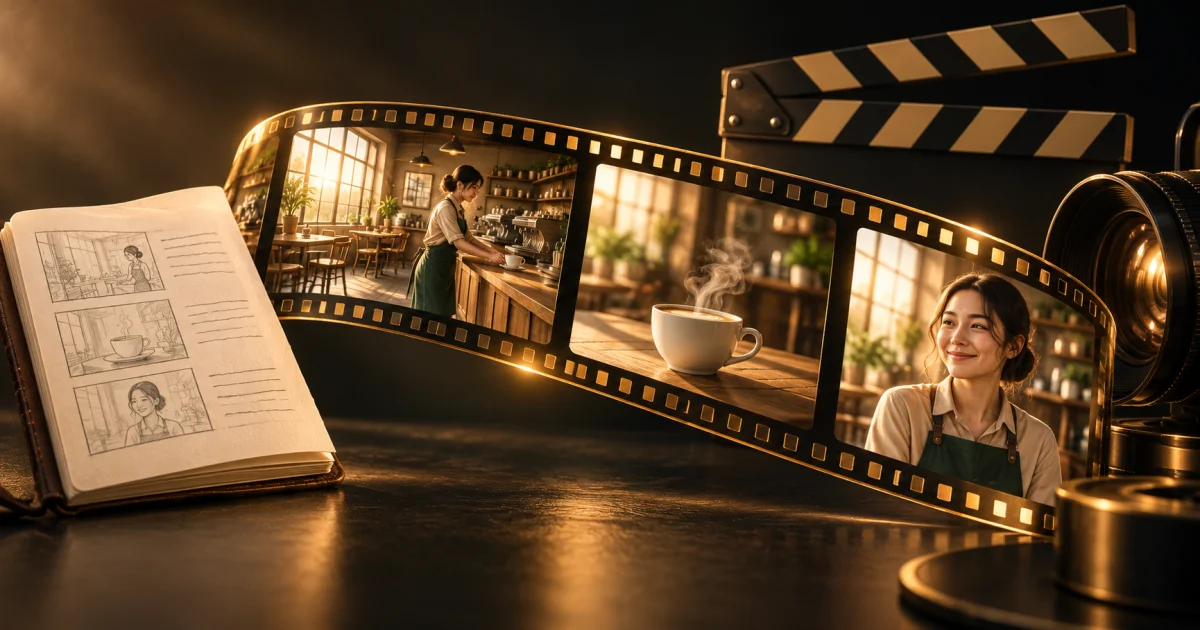
This article describes the Cinema Studio workflow at publication. Its AI-generated cover is a conceptual illustration, not evidence of a completed customer film. The scripts and prompts are practice material; results depend on the model, inputs and editorial selection. The in-app guide is available when you need to revisit a particular stage.