
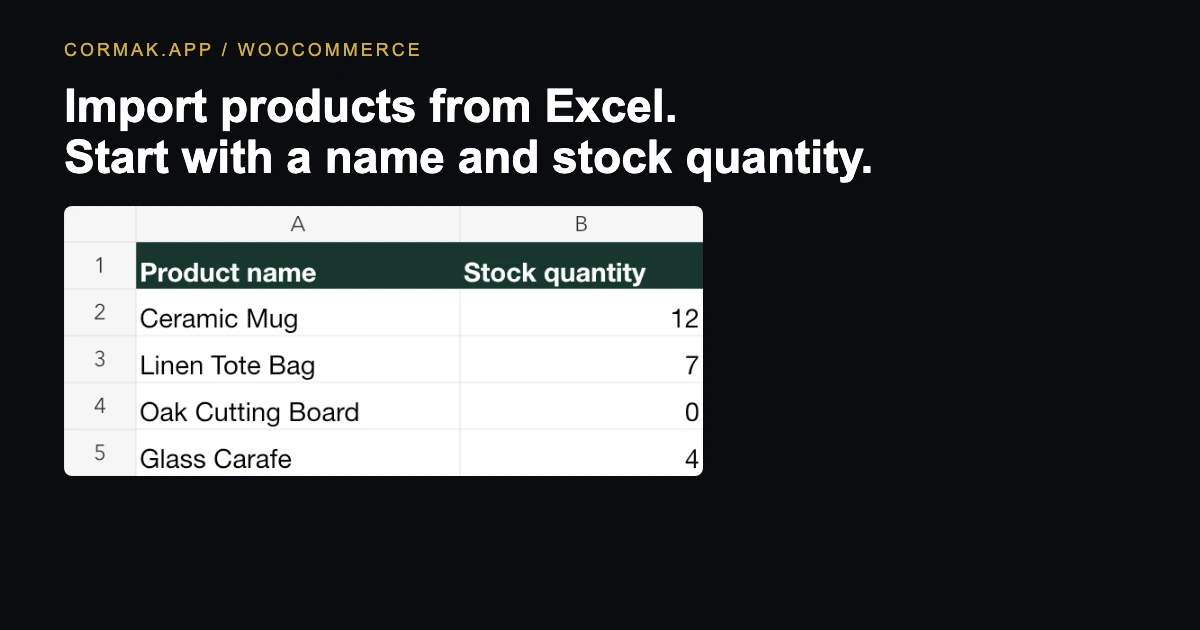
1. Start with a simple price list
Keep one product per row. Use Product name, Stock quantity and Price as your headers. Stock should be a whole number. Enter prices as numbers in your store currency. If the supplier’s sheet has no price, you can leave the price column unmapped and fill prices later.
2. Import the file into WooCommerce drafts
Install and activate Cormak with WooCommerce active. In Products → Fill with AI ✦ → Import a file, choose the XLSX, confirm the header row and map each column. Review all four products in the preview and confirm the store currency.
Clear all selected fields under Texts and leave How many photos set to No photos. When the button reads “Create drafts · 0 credits”, click it.
You can create the drafts without a Cormak account. Open the new drafts to check Regular price in General and the stock quantity in Inventory.
3. Generate descriptions and photos in bulk
Open Products → All Products and select the drafts, or select existing products you want to enrich. Choose Fill with Cormak under Bulk actions and click Apply. Select the fields you want, such as descriptions, categories, tags or attributes. For existing listings, keep Only fill empty fields of existing products checked to preserve filled text fields.
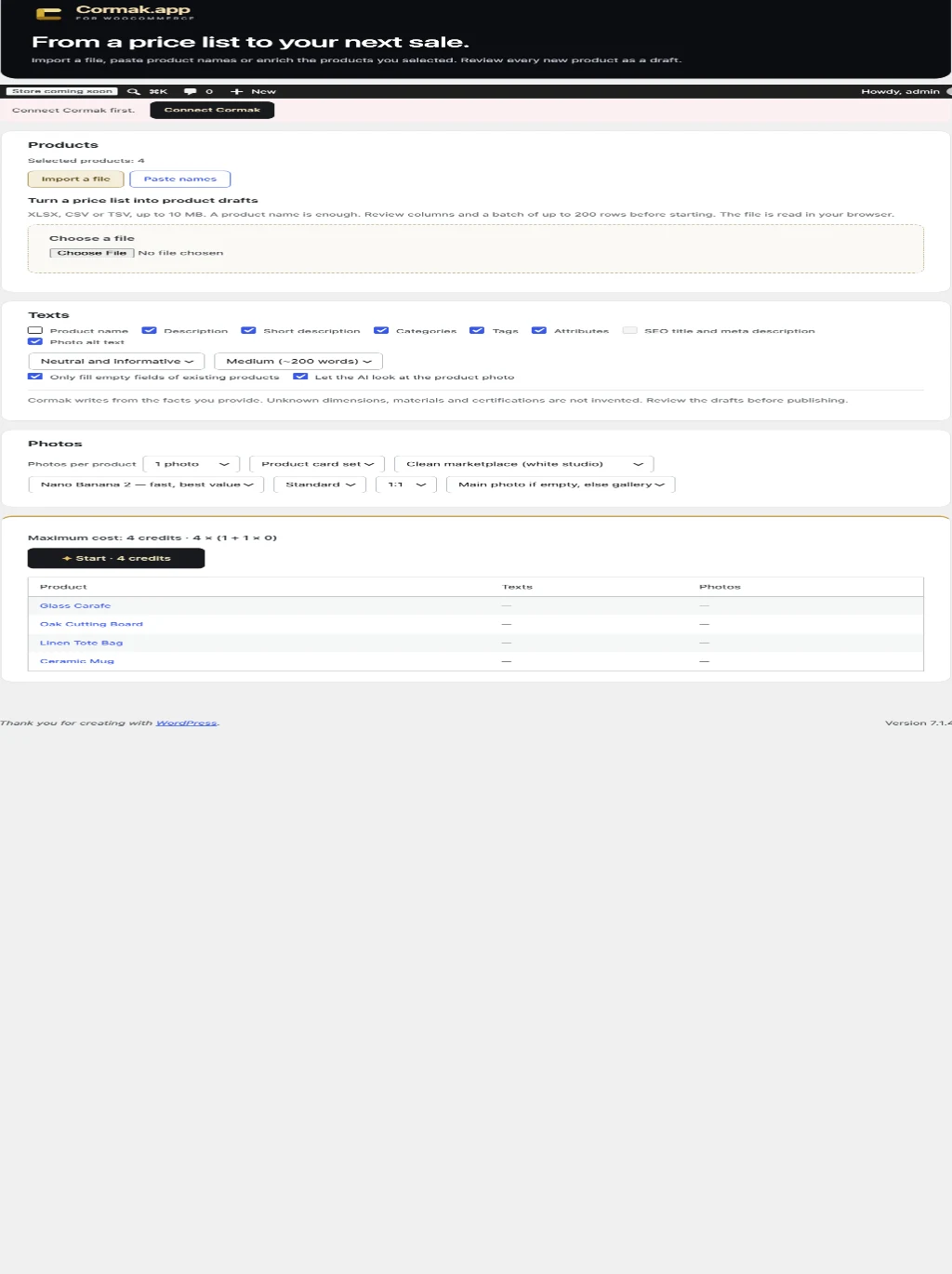
Connect your Cormak account, choose the number of photos and where they should go, then check the credit estimate before clicking Start. The import supplies prices and stock. AI generates content in the fields you select.
4. Review what AI added before publishing
Compare the descriptions, categories, attributes and photos with the actual product. If the spreadsheet gives the AI only a title, check any material, dimensions or other details against the supplier’s information. Review prices and stock in WooCommerce and use Preview to check the storefront before clicking Publish.